

Welcome to our knowledge-based article on creating website shortcuts on your computer’s desktop. If you are wondering what these shortcuts are, think of them as quick and effortless ways to reach your favorite websites without typing long web addresses each time. Whether it is a company website, a favorite recipe site, or your daily news source, these shortcuts make it simple. This guide will walk you through the steps, using plain language and pictures, so you can save time and enjoy your online experiences with just a click.
How To Shortcuts On Your Desktop: Windows
- Open Your Web Browser: Open your preferred web browser (e.g., Google Chrome, Mozilla Firefox, Microsoft Edge).
- Go to the Website: Navigate to the website for which you want to create a shortcut.
- Locate the URL: Highlight the URL of the website in the address bar.

- Copy the URL:
- Right-click on the highlighted URL.
- Select “Copy” from the context menu.
- Desktop Shortcut Creation:
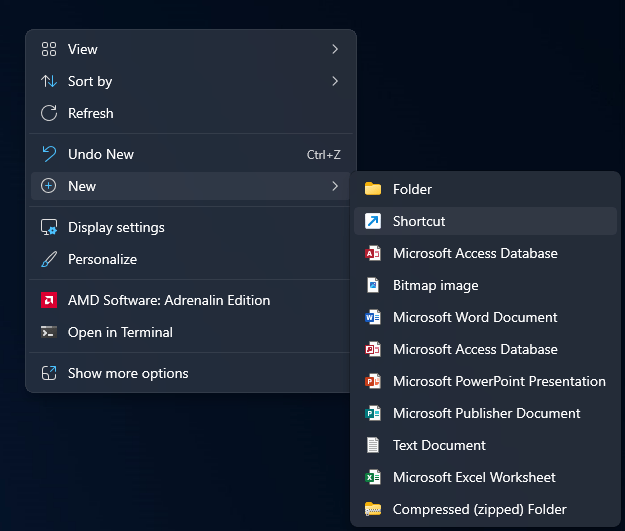
- Right-click on an empty area of your computer screen (your desktop).
- Hover over “New” in the context menu.
- Choose “Shortcut.”
- Paste the URL:
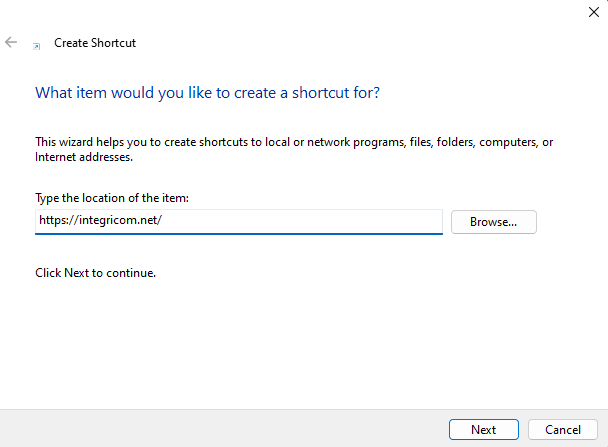
- In the “Type the location of the item” field, right-click and select “Paste.”
- Click “Next.”
- Name the Shortcut:
- Enter a name for the shortcut.
- Click “Finish.”
Now, you should see a desktop shortcut for the website.
How To Shortcuts On Your Desktop: MacOS
- Open Your Web Browser: Open Safari or your preferred web browser.
- Go to the Website: Navigate to the website you want to create a shortcut for.
- Create a Bookmark:
- Click on “Bookmarks” in the top menu.
- Select “Add Bookmark.”
- Edit the Bookmark:
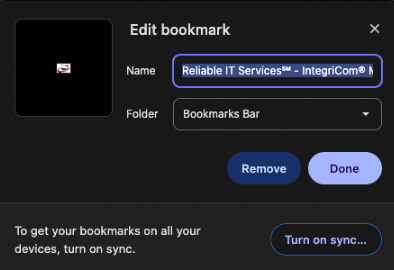
- In the pop-up window, choose the location “Bookmarks Bar.”
- Edit the name if needed.
- Click “Add.”
- Open Bookmarks Sidebar:
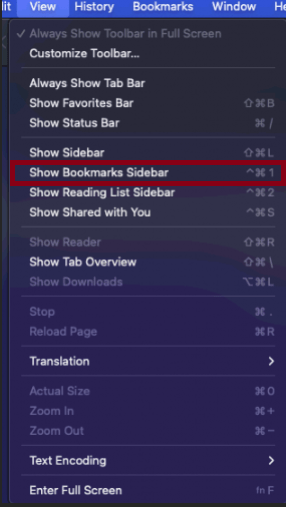
- In Safari, click on “View” in the top menu.
- Select “Show Bookmarks Sidebar.”
- Drag to Desktop:
- Find the bookmark you just created in the sidebar.
- Drag it to your desktop.
- You can also drag bookmarks from Chrome, Firefox, and Edge directly on to your desktop as well.
Now, you should have a desktop shortcut for the website on your macOS.