Windows Group Policy remains a foundational feature within the Windows ecosystem, enabling IT administrators to centrally control and manage user and computer environments. However, as organizations shift toward cloud-based and hybrid infrastructures, modern tools like Microsoft Intune and Microsoft Endpoint Manager have become essential extensions to traditional Group Policy. This blog provides a comprehensive understanding of Group Policy, its components, configuration, and how it fits into modern device management strategies. By the end of this post, you will have a solid grasp of how Group Policy works and how it can enhance your IT infrastructure’s security and productivity.
What Is Windows Group Policy?
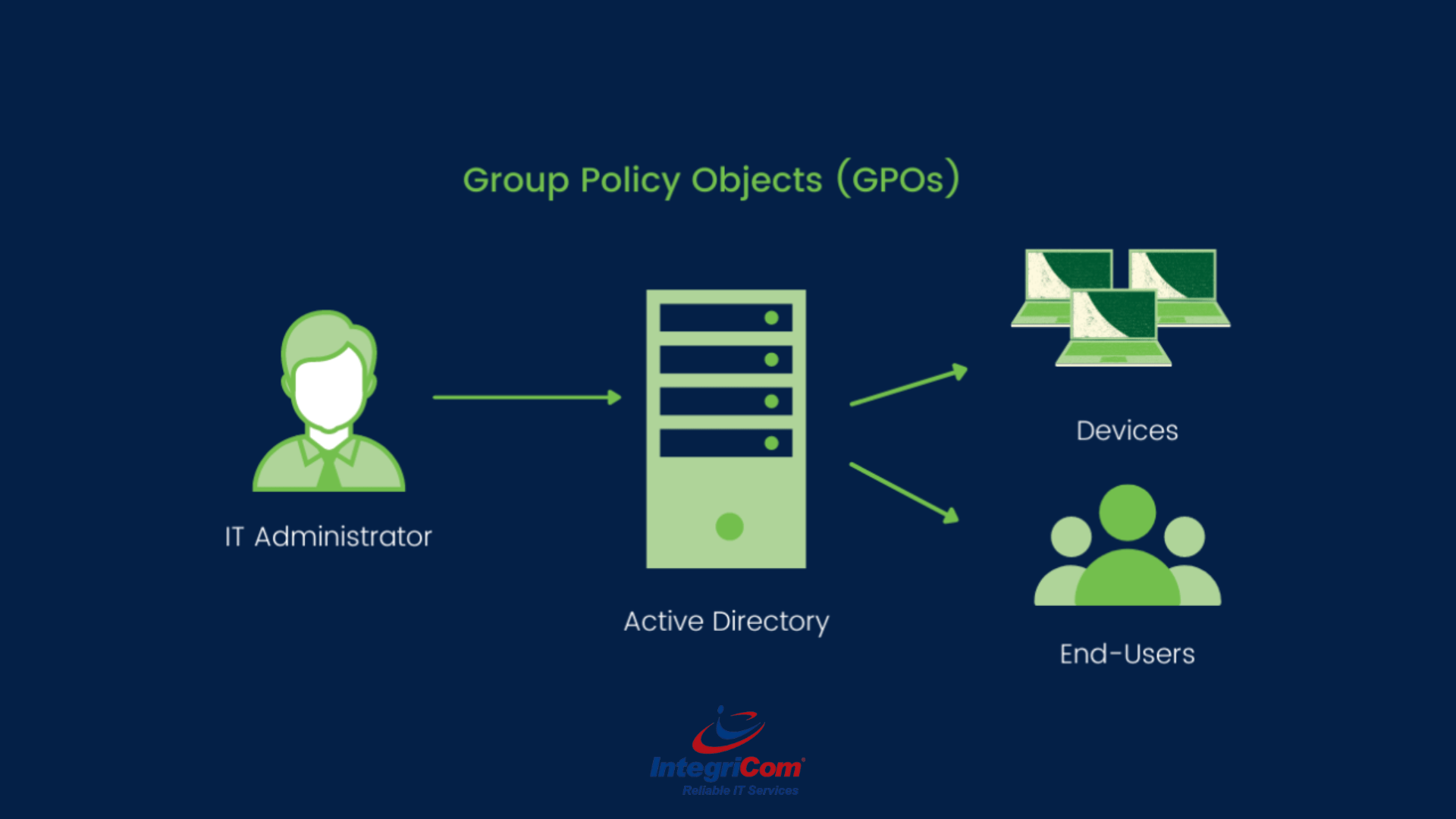
Group Policy is a feature in Microsoft Windows that provides centralized management and configuration of operating systems, applications, and user settings in an Active Directory (AD) environment. It allows administrators to define and enforce configurations across users and devices within a domain.
Today, while Group Policy remains critical for on-premises environments, organizations increasingly complement or transition these controls using cloud-based solutions like Microsoft Intune, especially for remote devices and mobile workforce management.
Read More: Hardening Microsoft 365: Security Best Practices Checklist – IntegriCom
Why Is Group Policy Important?
Group Policy continues to play a vital role in enterprise IT environments, particularly in hybrid setups that combine on-premises infrastructure with cloud-based management.
Centralized Management remains one of its core strengths, allowing administrators to control large numbers of systems from a single interface, whether directly through Group Policy or alongside Endpoint Manager.
Enhanced Security is achieved by enforcing consistent policies such as password rules, device restrictions, and compliance configurations. Modern environments extend this by integrating Conditional Access and compliance policies through Intune.
Consistency ensures that configurations are standardized across systems, reducing configuration drift and human error, which is especially important in regulated industries.
User and System Configuration capabilities simplify complex administrative tasks such as software deployment, login scripts, and device restrictions, while newer tools provide additional flexibility for off-network devices.
Key Components of Group Policy
To fully understand Group Policy, it is essential to examine its core components and how they interact with modern management tools.
1. Group Policy Objects (GPOs)
A GPO is a collection of policy settings that define how systems and users behave. These settings are applied across devices and users within an AD structure and remain the backbone of traditional Windows management.
2. Group Policy Management Console (GPMC)
The GPMC is the primary administrative tool used to create, edit, and manage GPOs. It provides a centralized interface for policy management within on-premises environments.
3. Active Directory (AD)
Group Policy relies on Active Directory to organize and apply policies to users and devices. GPOs are linked to sites, domains, or organizational units (OUs), forming a structured hierarchy.
4. Client-Side Extensions (CSEs)
Client-side extensions are responsible for processing and applying GPO settings on endpoint devices, ensuring policies are enforced correctly.
5. Modern Extensions: Intune & Policy Analytics
With the rise of cloud management, tools like Microsoft Intune introduce capabilities such as Group Policy Analytics, which helps organizations assess existing GPOs and migrate them to modern management frameworks. This allows businesses to gradually transition from traditional AD-based policies to cloud-based controls.
Read More: Understanding Microsoft Forms: Security & Compliance Features
How Does Group Policy Work?
Group Policy operates within a hierarchical processing model, ensuring structured and predictable policy application.
Local Group Policy is applied first at the device level.
Site-Level GPOs follow, applying policies based on AD site configurations.
Domain-Level GPOs are then processed, enforcing broader organizational policies.
Organizational Unit (OU)-Level GPOs are applied last, allowing for more granular control. In nested OUs, policies flow from parent to child.
When conflicts occur, the last applied policy takes precedence unless overridden by enforcement settings. In hybrid environments, administrators must also consider how Intune policies interact with or override traditional GPOs, especially in co-managed devices.
Configuring Group Policy
Step 1: Open the Group Policy Management Console (GPMC)
- Press Windows + R, type gpmc.msc, and press Enter.
- Alternatively, access GPMC through Server Manager by navigating to Tools > Group Policy Management
Step 2: Create a New GPO
- In the GPMC, right-click the domain or OU where you want to apply the policy.
- Select Create a GPO in this domain, and Link it here
- Name the GPO appropriately for easy identification.
Step 3: Edit the GPO
- Right-click the newly created GPO and select Edit
- Use the Group Policy Management Editor to configure settings under the Computer ConfigurationUser Configuration nodes.
Step 4: Test and Deploy
- Use the gpupdate /force command on target computers to apply the policy changes immediately.
- Verify the settings using the gpresult /r command or the Resultant Set of Policy (RSoP) tool.
Common Group Policy Settings
Security Policies
- Password Policies: Enforce complexity requirements, minimum length, and expiration.
- Account Lockout Policies: Define thresholds for account lockouts after failed login attempts.
- Firewall Settings: Manage Windows Firewall rules for inbound and outbound traffic.
Software Management
- Software Deployment: Deploy applications automatically to users or computers.
- Software Restriction Policies (SRPs): Prevent unauthorized applications from running.
User Configuration
- Folder Redirection: Redirect user folders (e.g., Documents, Desktop) to network locations.
- Logon Scripts: Configure scripts to run during user login or logout.
Desktop Customization
- Start Menu and Taskbar: Customize Start Menu layouts or disable certain features.
- Wallpaper Enforcement: Set a corporate wallpaper for all users.
Network Configuration
Drive Mapping: Automatically map network drives for users.
- Printer Deployment: Assign network printers to users or computers.
Advanced Group Policy Features
1. Group Policy Preferences
Preferences provide more granular control over configurations such as registry settings, scheduled tasks, and mapped drives without enforcing strict policies.
2. Loopback Processing
Loopback processing allows user settings to be determined by the computer they log into rather than their user account, which is useful in shared or kiosk environments.
3. Filtering
Security filtering restricts GPO application to specific users or groups, while WMI filtering targets devices based on conditions such as OS version or hardware configuration.
4. Group Policy Analytics (Modern Capability)
With Microsoft Intune, Group Policy Analytics helps organizations evaluate existing GPOs and determine readiness for migration to cloud-based policy management, enabling a smoother transition to modern endpoint management.
Read More: What are Co-Managed IT Services? How Does It Work?
Troubleshooting Group Policy
Even with its maturity, Group Policy can encounter issues that require structured troubleshooting.
1. GPO Not Applying
Ensure the GPO link is enabled, verify inheritance settings, and generate reports using gpresult /h to analyze applied policies.
2. Slow Logon or Boot Times
Reduce the number of linked GPOs and optimize scripts and deployments to improve performance.
3. Policy Conflicts
Use RSoP to identify which policy is taking precedence and adjust enforcement or link order accordingly.
4. Replication Issues
Verify domain controller replication using tools like repadmin to ensure consistent policy distribution.
In hybrid environments, also confirm whether conflicts exist between Group Policy and Intune policies.
Real-World Use Cases for Group Policy
Enhancing Security is one of the most common use cases, including enforcing encryption, restricting device access, and preventing unauthorized software execution.
Improving User Experience is achieved by standardizing desktop environments, automating resource access, and reducing manual configuration.
Compliance requirements can be met by enforcing password policies, audit logging, and software restrictions across the organization.
In modern environments, these use cases are often extended through Microsoft Endpoint Manager, allowing consistent enforcement across both on-premises and remote devices.
Read More: What is a vCIO (Virtual CIO) and Why You Need One
Best Practices for Group Policy
Plan Before You Implement by documenting policies and testing them in controlled environments to avoid unintended consequences.
Use Descriptive Names to ensure GPOs are easily identifiable and manageable.
Minimize GPOs by consolidating settings where possible to improve performance and reduce complexity.
Regularly Audit and Update policies to keep them aligned with evolving security standards and organizational needs.
In addition, organizations should evaluate when to transition policies to Microsoft Intune for better scalability, especially for remote or cloud-managed devices.
Frequently Asked Questions (FAQs)
Can Group Policy be used in non-domain environments?
Yes, Local Group Policy can be used, but it lacks centralized management. Modern alternatives like Intune provide centralized control without requiring domain membership.
How often are Group Policies refreshed?
By default, every 90 minutes on client machines and every 5 minutes on domain controllers. Manual updates can be triggered using gpupdate.
Can I backup and restore GPOs?
Yes, GPMC includes built-in backup and restore functionality for recovery and migration.
Conclusion
Windows Group Policy is a powerful tool that enables IT administrators to manage and secure their environments effectively. By understanding its components, configuration, and best practices, organizations can leverage Group Policy to enhance productivity and security while maintaining a consistent user experience.
IntegriCom also offers Managed IT Solutions for business, Cybersecurity Consulting, PCI Compliance Consulting, HIPAA Compliance Consulting, Cloud Services, Network Services & Computers, Business Phone Systems, Virtual CIO Services, and much more to support secure and scalable operations.