
...
Proud to be one of only a few Georgia MSPs on the 2026 MSP 501 list. See the announcement

IT services across Metro Atlanta & North Georgia

17 locations served — click a city to see services available in your area

Local experts
Select your location

    Atlanta, GA

    Managed IT services for Atlanta businesses

    ★ Why IntegriCom

    No term contracts. Just commitment.

    Trusted IT partner for businesses across Georgia. Same-day response, senior engineers, zero lock-in.

    20+
    Years serving GA
    17
    Cities covered
    Get a free IT assessment
    678-507-0700
    Mon–Fri · 7am–6pm

    IT services across Metro Atlanta & North Georgia

    17 locations served — click a city to see services available in your area

    Local experts
    Select your location

      Atlanta, GA

      Managed IT services for Atlanta businesses

      ★ Why IntegriCom

      No term contracts. Just commitment.

      Trusted IT partner for businesses across Georgia. Same-day response, senior engineers, zero lock-in.

      20+
      Years serving GA
      17
      Cities covered
      Get a free IT assessment
      678-507-0700
      Mon–Fri · 7am–6pm

      If you are tired of Microsoft Teams popping up after you reboot your PC then here is how you can stop that from happening. If your PC does not look like the screenshots below do not worry. Simply scroll down to “Alternative Methods” and disable it that way.

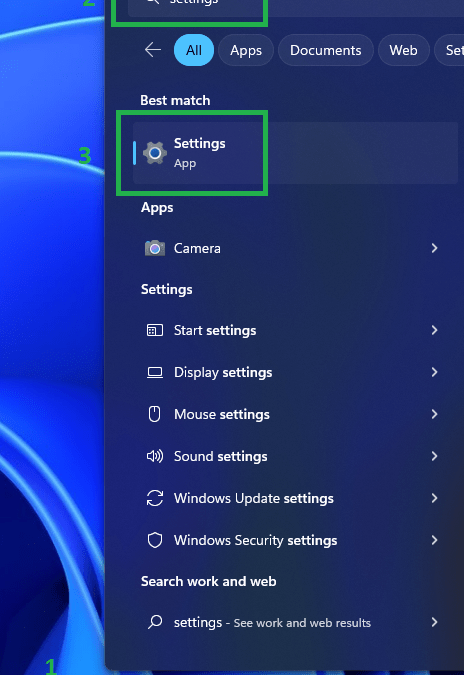
      On your, Desktop go to the Windows Icon search “Settings” and click on settings
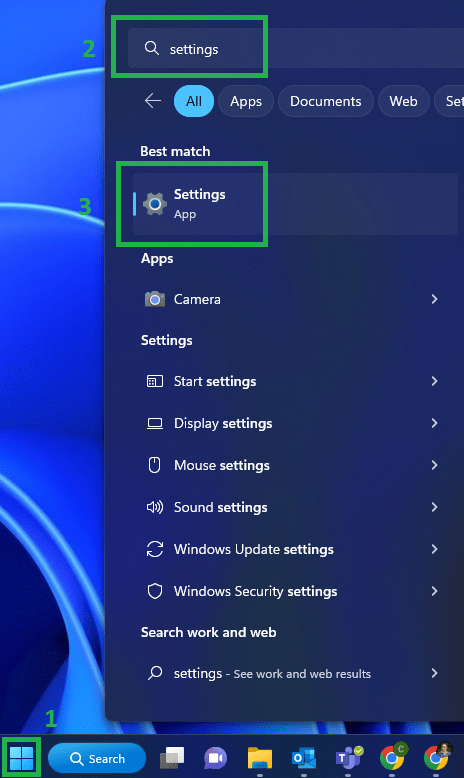
      Windows Settings Screenshot

      In the top left search box type in “Startup Apps” and click it
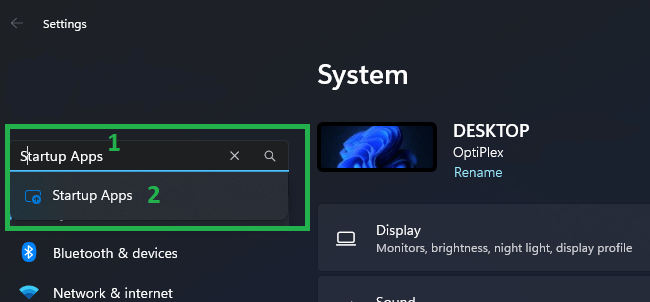
      Windows Startup Apps Screenshot

      Look for “Microsoft Teams” and disable the startup
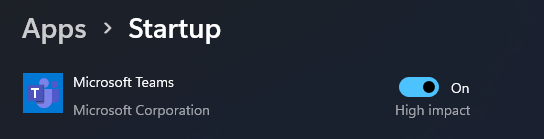
      Windows Microsoft Teams Startup Settings Screenshot

      You are now all good to go and can enjoy NO Microsoft Teams windows lunching when you log into your PC.

      Alternative Methods to Remove Microsoft Teams from Start Up:

      The example above was for Windows 11 but if you are on an older or newer version of windows the below method should work.

      Method 1: Disable Form Task Manager

      You can disable Microsoft Teams from Task Manager and it will not start up automatically:

      1. Press Ctrl + Shift + Esc key to open Task Manager.
      2. Go to the Startup tab.
      3. Click on Microsoft Teams, and click on Disable.

      Method 2: Change settings

      You can the settings in Microsoft Teams and see if that helps:

      1. Launch Microsoft Teams.
      2. Click on the Profile icon on the top right corner and click on Settings.
      3. Scroll down and clear the checkbox for Auto Start Application.