
...
Proud to be one of only a few Georgia MSPs on the 2026 MSP 501 list. See the announcement

IT services across Metro Atlanta & North Georgia

17 locations served — click a city to see services available in your area

Local experts
Select your location

    Atlanta, GA

    Managed IT services for Atlanta businesses

    ★ Why IntegriCom

    No term contracts. Just commitment.

    Trusted IT partner for businesses across Georgia. Same-day response, senior engineers, zero lock-in.

    20+
    Years serving GA
    17
    Cities covered
    Get a free IT assessment
    678-507-0700
    Mon–Fri · 7am–6pm

    IT services across Metro Atlanta & North Georgia

    17 locations served — click a city to see services available in your area

    Local experts
    Select your location

      Atlanta, GA

      Managed IT services for Atlanta businesses

      ★ Why IntegriCom

      No term contracts. Just commitment.

      Trusted IT partner for businesses across Georgia. Same-day response, senior engineers, zero lock-in.

      20+
      Years serving GA
      17
      Cities covered
      Get a free IT assessment
      678-507-0700
      Mon–Fri · 7am–6pm

      Change Audio Devices in Teams

      Outside of call

      To select the mic, speaker, and camera you want Teams to use for calls and meetings go next to your profile picture at the top of Teams and then choose Select

      Microsoft 365 Teams Change Fix Microphone or Camera Profile More Dots Screenshot

      to see more options > Settings > Devices. Here is where you can change Speaker and Microphone options for your team’s call. To confirm your settings select “Make a test call” to verify everything is working before that important meeting.
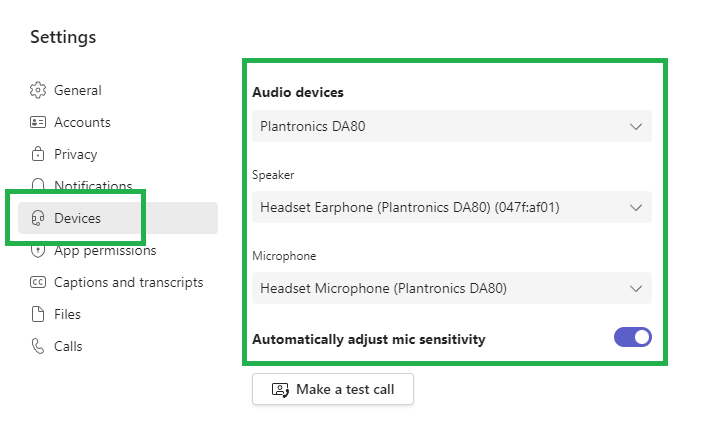
      Microsoft 365 Teams Change Fix Microphone or Camera Devices Audio Screenshot

      In a call

      Go to “More” > Device Settings
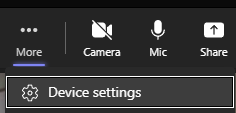
      Microsoft 365 Teams Change Fix Microphone or Camera Device Settings Screenshot

      Here is where you can choose your Audio Devices, both Speaker and MIcrophone
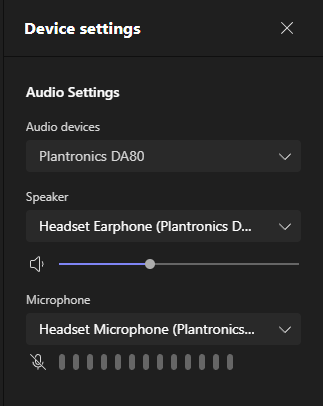
      Microsoft 365 Teams Change Fix Microphone or Camera Device Settings 2 Screenshot